A useful break reminder for Mac fits your screens, your meetings and the kind of break you want to take. Start with those requirements, check permissions and compatibility, then try it during an ordinary work session. This guide gives you a decision table and a first-day checklist you can use with any app.
Start with the kind of break you want
A break reminder is an app that prompts you to pause at chosen times. Some give a simple cue to step away. Others display an activity or guide you through a movement. For example, Stretchly's documentation describes reminder windows with break ideas and configurable timing.
Choose the experience you actually want. A gentle cue may suit you if you already know what you will do. If you want an activity to follow, preview the guidance before installing. If you tend to dismiss small notifications, look at how a larger reminder behaves and how you can pause it when needed.
There is no need to choose the app with the longest feature list. Write down your few essential requirements first.
Five checks before you choose
| Your requirement | What to look for | What to try |
|---|---|---|
| A prompt you notice | Notification, reminder window or full-screen break | Let a reminder appear while you work normally |
| Coverage across your desk | Documented behavior on connected displays | Use your usual laptop and external-screen arrangement |
| Control around meetings | Clear pause, snooze and restart controls | Pause before a call and check the state afterward |
| A suitable activity | Clear instructions and an activity that fits your space | Preview the complete break rather than just a screenshot |
| Permissions and access you understand | Camera explanation, fallback, compatibility and trial terms | Read the policy and confirm what happens without camera access |
1. Try the actual interruption
A small notification and a full-screen break interrupt work differently. Open the apps you usually use and let a reminder arrive. Can you notice it? Can you understand what it asks you to do? Can you tell how to return to work?
Look for a level of interruption you are willing to keep enabled. A forceful break may fit a quiet work block, while calls and presentations need an easy-to-find pause control.
2. Include every screen you use
If your MacBook is usually connected to a monitor, test that arrangement. A laptop-only trial won't tell you what the reminder does on your other display.
Check where the instructions appear and what happens on the remaining screens. If you regularly switch between a docked setup and the laptop alone, try both. Treat full-screen support and all-display support as separate things to verify in the app's documentation and your own trial.
3. Pause once, then restart
Before your next meeting, locate the pause control. Afterward, check whether breaks have resumed and whether you can see the next one coming.
Don't assume an app detects meetings just because it offers pause or snooze. If automatic behavior matters to you, confirm exactly what triggers it. A reliable manual routine may be enough: pause before the call, resume when it ends.
4. Read what camera access means
For an app that checks movement with a camera, ask three questions: Where are frames processed? Are video or movement measurements saved or sent elsewhere? What happens if you decline camera access?
Apple lets you control camera access for installed apps. The app's own privacy policy explains what it does with that access. Local video processing does not, by itself, mean an app makes no network requests or collects no account or usage data.
If you prefer no camera use, check both first-run setup and regular breaks. A timed option for later breaks does not establish that setup can be completed without a camera.
5. Check your Mac and the trial terms
Confirm the required macOS version and whether your Mac's processor is supported. An app being available for Mac does not establish compatibility with every Mac.
Read the trial terms before signing up: whether an account is required, whether payment details are needed, what is available during the trial and what happens when it ends. A free trial and a free ongoing plan describe different kinds of access.
Two example setups
These are example evaluation plans you can adapt to your day.
A laptop, an external monitor and frequent calls
Your essential checks are display coverage and pause controls. Start with both screens connected. Let one break appear, note which screen carries the instructions, then practice pausing and resuming. Before a real presentation, make sure you know how to keep a reminder from interrupting it.
A laptop-only desk with no camera use
Start by finding the app's no-camera behavior, including whether first-run setup can be completed without camera access. If it offers a timed option, try that and make sure the instructions still make sense. Then check timing and interruption style. You can rule out an app whose required permissions don't fit your preference without comparing every optional feature.
Where Moov fits
Moov is built around guided standing movements during the Mac workday. It supports Apple Silicon Macs running macOS 11.0 or later, offers six movements and lets you choose the interval, repetitions and movements that appear.
Its break covers connected displays. You can pause when needed, then return to the routine. That makes display coverage, the movement demonstration and pause controls useful things to check during your trial.
Moov's privacy policy describes movement checks that process camera frames on your Mac without uploading or recording camera video. It documents a timed fallback for regular breaks when camera or model checks are unavailable. First-run practice is a separate limitation: the source used for Moov 0.1.2 requires a camera-checked repetition before Continue becomes available. A fully camera-free first-run setup has not been verified. The policy separately explains network downloads, accounts and usage data.
You can complete two movement breaks without an account, then sign in and verify your email for a seven-day trial. The trial terms require no card and attach no automatic charge or renewal to the trial. When it ends, continued access requires a paid plan.
Your first-day checklist
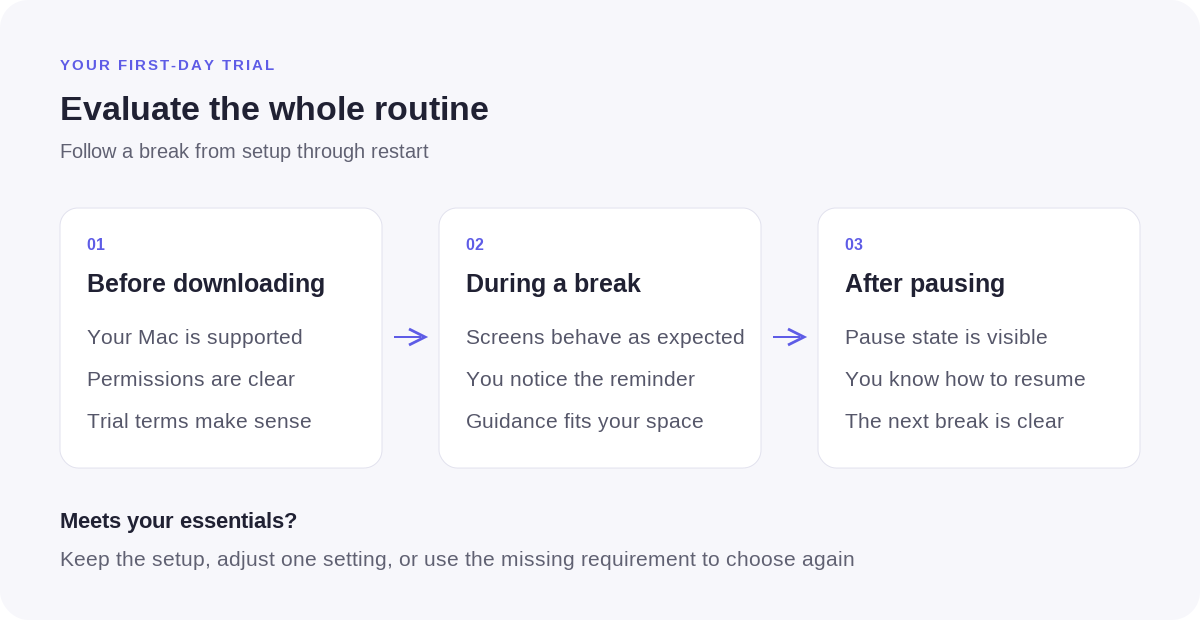
- The reminder appears where I expect on every screen I use
- I understand what the break asks me to do
- I can pause before a meeting and restart afterward
- The activity fits the space available beside my desk
- I understand the camera permissions and any timed fallback
- My Mac meets the compatibility requirements
- I know when the trial ends and what happens next
If one item fails, record what happened before changing settings. Adjust that part of the setup and try again. If an essential requirement still isn't met, use it to narrow your next choice.
Common mistakes to avoid
- Choosing from a screenshot without trying a complete reminder
- Testing only the laptop screen when you normally use several displays
- Assuming pause, snooze and automatic meeting detection mean the same thing
- Reading “on-device camera processing” as a claim that the entire app is offline
- Starting a trial without checking compatibility or the end-of-trial terms
Questions before downloading
Do I need a full-screen break reminder?
Choose based on the interruption you want. Try a small cue if that is enough to prompt your break. If you want a more prominent reminder, test its full-screen behavior and pause controls during an ordinary work session.
Does a break reminder need a camera?
That depends on the app and feature. Moov documents a timed fallback for regular breaks when camera or model checks are unavailable. Its current first-run practice has the camera requirement described above, so don't assume declining permission lets you complete setup.
Can I test Moov before creating an account?
Yes. Moov allows two completed movement breaks without an account. Sign in and verify your email to continue with the seven-day trial; no card is required.
Try it during your next work session
Choose one requirement from the checklist, then see how Moov fits your normal desk setup.
Apple Silicon · macOS 11.0+ · Two free breaks, then a seven-day trial with no card required
Sources and method
Product documentation reviewed October 12, 2026: Moov, Moov Privacy Policy, Moov Terms, Apple's camera-permission guide and Stretchly's documentation. First-run camera requirements were also checked against the source used for Moov 0.1.2 on October 13, 2026. The examples and checklist are original evaluation aids. This guide is based on documentation and release-source review, not a hands-on app ranking.
Choosing for a particular workflow? Compare Apple Watch and Mac reminders, or use the programmer-specific reminder checklist.
Related practical guide: Is your Mac break reminder draining the battery? Check before switching.
For a practical next step, read our guide to testing keyboard controls for Mac break reminders.
For a practical next step, read our guide to comparing editable DeskRest routines with guided Moov movements.