Separate a timer page, an extension and a Mac app
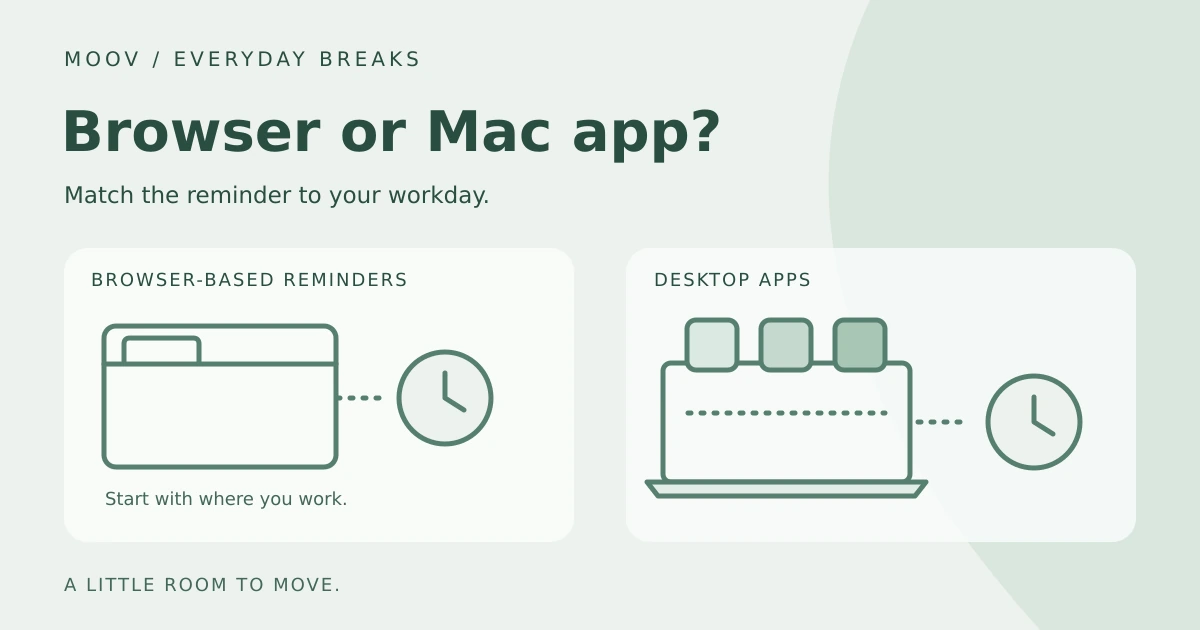
“Browser break reminder” can describe a timer on a website or an installed extension. Those are different setups. A timer page may depend on keeping that page open. An extension has its own documented behavior within the browser. A desktop app runs separately from the browser, but still has to be running to remind you.
Start with the software you use during a normal work block. Do you stay in one browser, switch between Chrome and Safari, or spend long periods in a code editor, design app or document editor? Then ask whether you normally quit the browser you would use for reminders.
Also separate closing a tab, closing a window and quitting the app. Apple's window guide explains that closing app windows is different from quitting. An empty desktop alone does not tell you which apps are still running.
This guide is published by Moov and uses official documentation reviewed on November 10, 2026. The checks below are for you to perform in your setup, not results from a hands-on test.
Check whether the browser must be running or in front
A browser reminder does not necessarily need its tab in front. Chrome provides an extension notifications API for system notifications. That means an extension can use an alert outside the webpage, subject to its implementation and notification settings. A toolbar badge, page overlay and system notification are different things to compare.
For a concrete example, Daily Reminder's official Web Store listing describes break timers with notifications and optional sounds. It states that reminders operate while Chrome is open and timers pause until it is reopened when Chrome closes. This is that publisher's documented behavior, not a rule for every extension.
If Chrome stays running while you edit a document elsewhere, an extension with suitable notifications may still fit. If you deliberately quit Chrome for focused work, choose a tool whose required software remains running. Do not assume a background-running option or separate companion app exists unless its documentation says so.
Moov's terms state that closing its window keeps it running and Quit stops reminders. A Mac app is independent of the browser; it is not independent of being launched and left running.
Read permissions before treating an extension as the easier option
An extension may feel like a small installation, but the requested permissions still matter. Google's extension guide explains that extensions can request permissions and that users can manage website access. It also notes that a work or school organization may block extensions.
Read the installation prompt alongside the feature you want. If an extension asks to read or change website content, understand why. A simple reminder and an on-page overlay may use different capabilities. Neither the word “extension” nor “desktop” is a privacy guarantee.
On a managed Mac, ask which reminder tools and installation methods are approved. Include the exact product, its requested permissions and whether an account or camera is required. Do not use a browser extension to get around a restriction on installing desktop software, or the reverse.
For either format, distinguish notification permission from camera access and account data. You can be comfortable with one and decline another. If a required permission conflicts with your workplace rules or preferences, choose a different tool before investing time in setup.
Check what happens after sleep and a restart
A countdown that works once does not answer what happens after lunch or the next morning. Chrome's alarm documentation says extension alarms do not wake a sleeping device. Missed repeating alarms fire at most once on waking, then are rescheduled. Persistence also depends on the implementation and browser version.
That documentation describes a browser capability, not proof that a particular reminder uses it correctly or uses it at all. Read the product's instructions and make these short checks with whichever option you choose:
- Normal work: start a short test interval, switch to your usual work app and observe the alert.
- Closed window: check whether the required app is still running and what happens to the reminder.
- Quit and relaunch: save your work first, then check whether reminders resume automatically or need restarting.
- Sleep and wake: note whether the next prompt is immediate, delayed or starts a fresh interval.
Use the browser profile, displays and Focus settings you normally work with. If an expected alert is missing, the Mac notification troubleshooting guide covers that separate problem. Keep a short record rather than changing several settings at once.
Choose the break activity separately from the delivery format
Once you know the reminder can reach you, decide what should happen next. A notification may be enough to cue a walk or a pause you already planned. If you want instructions, look for an actual demonstration or activity guide. Extensions and desktop apps vary; the installation format alone does not tell you what a break contains.
Moov offers configurable intervals and six guided standing movements for Apple Silicon Macs running macOS 11.0 or later. It is a candidate when you want a movement to follow beside the desk, independently of which browser you use. Pause manually before a call or presentation when needed; do not assume automatic meeting detection.
Check the setup requirement first: Moov's current first-run practice requires a camera-checked repetition. A timed fallback for regular breaks does not provide camera-free onboarding. The privacy policy describes local camera processing without recording or uploading camera video, but resource downloads and connected services mean the app is not entirely offline. Read the camera and setup details.
Choose movements that fit your space and circumstances, and stop if they hurt. A break app does not establish whether an exercise is appropriate for you or guarantee a health outcome.
Make the choice with three concrete answers
Before installing, finish these sentences:
- The software I am willing to keep running is…
- The reminder I need to notice is a badge, a notification, a window or a guided break…
- When it appears, the action I intend to take is…
Choose an extension when its documented behavior and permissions fit those answers. Choose a Mac app when browser-independent operation or its particular break experience is the reason you need it. If an existing reminder already works, there is no need to replace it simply because another format is available.
Try one timer at a time. For Moov, two completed guest breaks are available before an account is needed. Sign in and verify your email for a seven-day trial with no card required; a paid plan is needed afterward. Onboarding practice is separate. Use that opportunity to check the movement and interruption style, not to assume that completing setup means every part of your workday is covered.
Try a movement break on your Mac
Moov offers configurable break intervals and six guided standing movements. Try one in the space beside your desk, and pause manually when an interruption would not suit you.
First-run practice requires a camera-checked repetition. Read the setup and camera details before trying it.
Apple Silicon · macOS 11.0+ · Two free guest breaks, then sign in and verify your email for a seven-day trial. No card required. A paid plan is needed afterward.