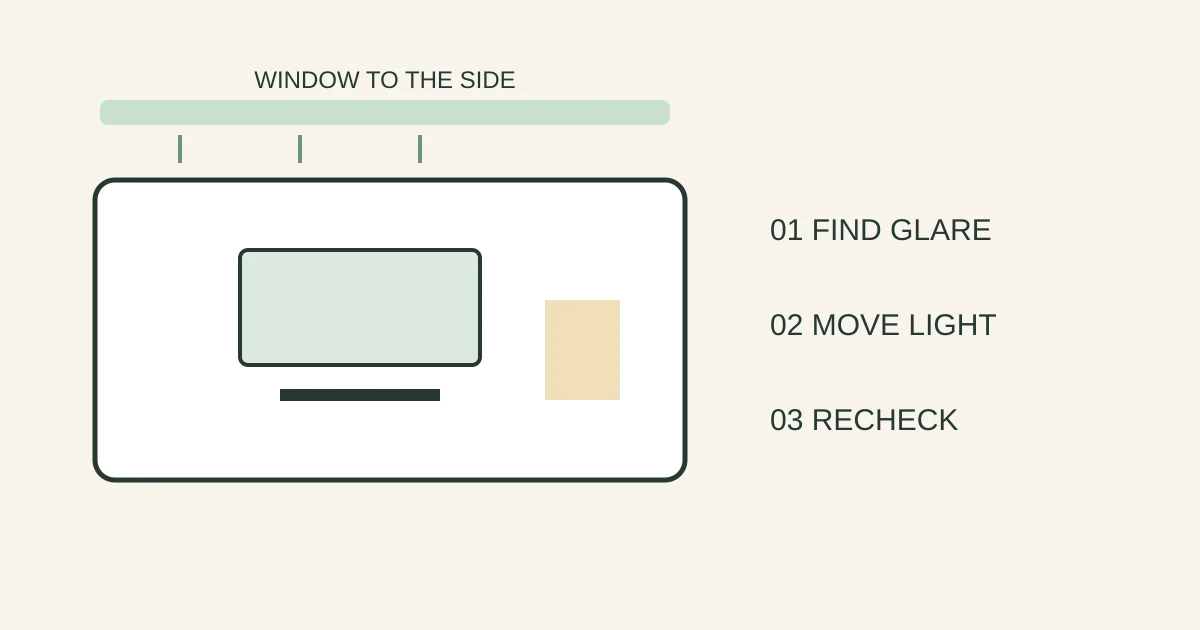
Find the source from your working position
Glare is not simply “the room is too bright.” A window reflected in a dark part of the screen, a lamp in your line of sight, and a bright window behind the monitor are different problems. Begin from the position where you normally read and type, not from the doorway where the room looks attractive.
The CCOHS lighting survey distinguishes insufficient light, glare, contrast, uneven distribution and flicker. This matters because adding a brighter lamp will not solve every one of them.
Try a simple observation log: time of day, task, visible reflection, and the change you tested. Use ordinary work content without sharing private screenshots. Notice whether you lean, twist or raise your chin to find a clear patch. That is a reason to investigate the setup, not a diagnosis of the cause of any pain.
Try a side-on relationship with the window
OSHA's workstation guidance recommends arranging the screen at right angles to windows and managing bright light with blinds or drapes. The aim is to avoid both a bright source directly behind the display and a reflection from behind you.
In a small room, moving the entire desk may be impractical. Try rotating the screen or repositioning the work area a little, then adjust the blind that controls the problem light. Change one thing at a time so you know what helped. Keep cables, exits and walking space safe; do not create a trip hazard to improve a reflection.
Test again when the sun moves. A setup that works early in the morning may need a different blind position later. Keep a useful daytime adjustment rather than assuming a single photograph of the room proves the lighting works all day.
Light the paper without lighting the screen
A monitor emits light; your notebook does not. If you alternate between printed material and a screen, the two tasks may need different lighting. CCOHS's eye-discomfort guidance recommends directing task lighting toward documents rather than the monitor and avoiding excessive contrast.
Use your current lamp as a test before buying anything. Move or angle it so the page is readable without putting a bright bulb in your eyes or a reflection on the display. Check the result while actually writing, because your hand or body may cast a shadow that is absent when the desk is empty.
There is no universally correct lamp brightness for every room and task. Keep enough light to work and move around safely. If workplace lighting is fixed or flickering, report the issue to the responsible person rather than removing bulbs or modifying electrical fixtures yourself.
Then adjust the display and reading task
Once you have reduced the obvious reflection, compare the display with its surroundings. A glaring screen in a dark room and a very dim screen beside a bright window can both be uncomfortable to use. CCOHS recommends adjusting brightness and contrast to suit the person and task; it does not mean setting every monitor to the same percentage.
Check the practical reading problem too. Can you comfortably read ordinary text at your usual distance? Try the application's zoom or text-size controls instead of repeatedly leaning forward. Do not solve tiny text by moving into a posture you cannot comfortably sustain.
Clean the display using the manufacturer's instructions and check whether smudges are making the image harder to read. If you change its angle, recheck the height and distance rather than improving the reflection at the expense of your neck position. See our monitor positioning guide for that separate setup task.
Use a before-and-after check before buying accessories
Give each change a fair test during the task that exposed the problem. If glare appears while reviewing a dark design canvas, a white document is not an equivalent test. If it happens only in afternoon sunlight, checking at night will not answer the question.
Keep a short checklist: reflection reduced, text readable, paper readable, no new shadow, comfortable head position, and a safe path around the desk. These are observations you can make without claiming a clinical improvement or using an uncalibrated phone reading as a formal lighting assessment.
CCOHS advises controlling glare through lighting design and monitor placement before adding an anti-glare screen, which can affect image quality. If you still consider an accessory, define the unresolved problem first and check compatibility with the display. This guide does not rank products or promise that a light bar, filter or new monitor will fix your symptoms.
Keep breaks separate from fixing the workstation
Changing activity is useful, but a reminder cannot reposition a window or assess your vision. Pair a better setup with regular opportunities to look away and move comfortably. Our eye-break guide explains the familiar cue without treating it as a cure, and the MacBook ergonomics guide addresses the laptop's linked screen and keyboard.
If you still have recurring discomfort, headaches or blurred vision, speak with an appropriate eye-care professional and describe your work conditions. Do not assume every symptom comes from screen glare or use an app as a substitute for assessment.
For a shared workstation, leave the next person a neutral note about the adjustable blind or lamp rather than setting a rule that everyone must use your preferred brightness. The useful outcome is a workstation people can adapt, not a fixed “perfect” setting that ignores individual needs.
Make room for a movement break
Moov offers configurable break intervals, manual pause/resume and six guided standing movements on Apple Silicon Macs running macOS 11.0 or later. First-run practice requires a camera-checked repetition. It is a movement reminder, not an ergonomic assessment or a treatment for symptoms.
Two free guest breaks, then sign in and verify your email for a seven-day trial. No card required. A paid plan is needed afterward. Read the setup and camera details before trying it.