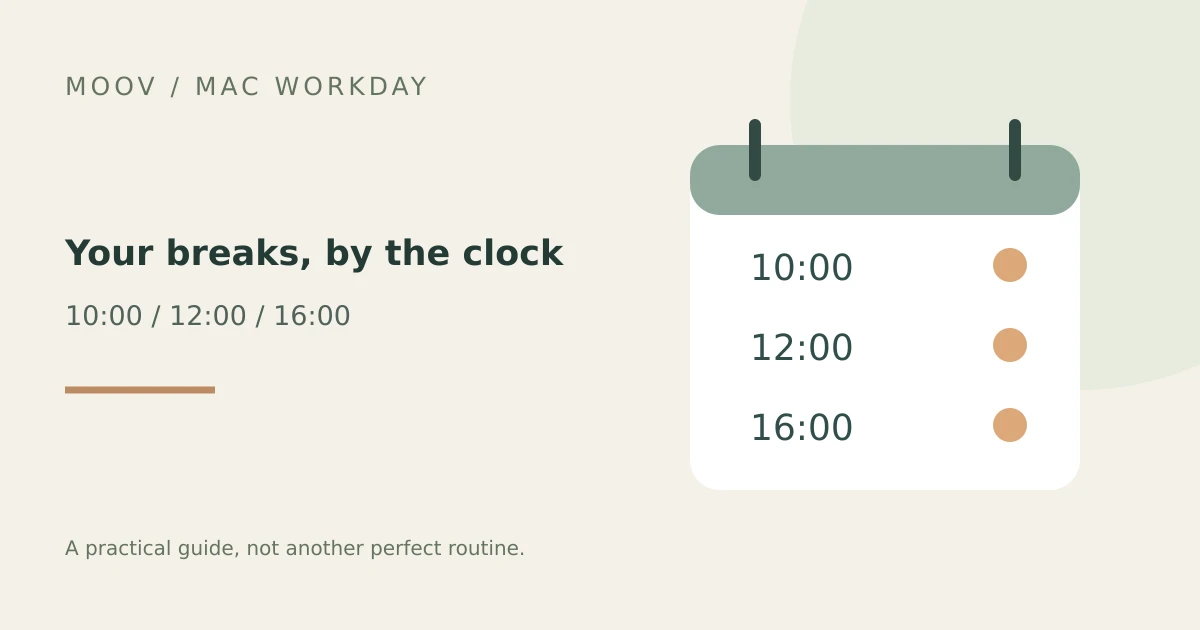
“At 10 a.m.” is different from “in 30 minutes”
If you want a break at 10 a.m., noon and 4 p.m., start with a clock-time schedule rather than a countdown. Starting a 30-minute timer at 9:43 produces a different result. An activity-based timer may also change its due time after you leave your Mac. Neither behavior is wrong, but neither is the same as a fixed appointment with yourself.
This distinction matters for shared lunch breaks, a predictable shift or a personal routine you want to keep independent of when you first touched the keyboard. You may want a simple notification, not a full-screen interruption or an app that measures active use.
For a free starting point, use recurring Calendar events with alerts. Create a separate series for each time of day. If you instead want a reminder after each work block, use the general Mac break-reminder setup guide.
Create a weekday schedule in Calendar
Start with one break time and confirm it works before making all three. Use a personal calendar if the events are only for you; avoid accidentally adding breaks to a shared team calendar or inviting colleagues.
- Create the first event. Open Calendar on your Mac and add a timed event on the next workday. Give it an action-oriented name such as “Leave the screen for a short break.” Set its start to your chosen time, for example 10 a.m.
- Set the repeat pattern. Open the event's time details and use Repeat. For weekdays, choose Custom, a weekly frequency, and the days you work. Check the resulting dates rather than assuming a daily repeat excludes weekends.
- Add an alert. Set a notification for the event's start time. If that exact option is not shown, use the available custom alert controls. A calendar entry with no alert is only a visual entry.
- Review the duration. Give the event the amount of calendar space you want to reserve. Event duration does not mean the computer will enforce a break.
- Repeat for the other times. Create separate recurring events for noon and 4 p.m., or whichever times fit your day. Review each series' weekday pattern and alert.
Apple documents custom weekly recurrence and event alerts. Labels can vary with macOS version. Choose the matching version in Apple's guide if your controls differ.
For a temporary routine, give the recurring series an end date. You can also start with fewer breaks and add another time after trying the schedule; three daily slots are an example, not a recommended medical interval.
Use events when you do not want completion to control the schedule
Calendar events and Reminders tasks can look similar, especially when both appear in Calendar. They have different purposes. An event represents a time in your schedule. A task is something you mark complete.
Apple explains that the next occurrence of a repeating reminder appears after the current one is completed. That can be useful if you want to check off each break. It is a mismatch if you expect an unattended recurring prompt while leaving earlier tasks unfinished.
For independent clock-time slots, create actual events, not reminders displayed inside Calendar. If you prefer tasks, deliberately complete each one and verify the next due date. Do not interpret an accumulating task list as evidence that a break app is broken.
Working hours are not the same as fixed-time breaks
An app can offer “working hours” without offering an alert at an arbitrary list of clock times. Working hours may simply define the window during which its interval timer is allowed to run.
For example, BreakTimer's official site describes both configurable break intervals and working hours. Those features alone do not establish that you can schedule independent 10 a.m., noon and 4 p.m. alerts. Check the actual controls before choosing an app for that requirement.
Time Out's Schedule guide explicitly documents a Fixed Time mode using minutes past the hour. Fixed Time, availability windows and selected days are supporter features, rather than assumptions to make about the free core. For more complex timing, inspect how frequency, availability and natural-break options interact in your installed version. Do not assume “every hour” means the top of the hour, or that an idle-reset option leaves clock-time appointments unchanged.
If you only need three gentle daily alerts, Calendar may already be enough. Consider a dedicated timer when its display style, break actions or scheduling controls solve a problem you have actually encountered.
Test the schedule before relying on it
- Test a near-term event: create one a few minutes ahead while the Mac is awake and unlocked. Confirm an alert appears, then remove the test event.
- Test your normal Focus: Calendar notifications need appropriate permission. Apple notes that a Focus can require allowing Calendar notifications. Review that app rather than disabling every distraction filter.
- Check off-days: inspect the coming weekend or other non-working day to catch an accidental daily repeat.
- Check a late start: decide what you will do if you open the Mac after a scheduled break. A fixed-time plan does not automatically become an active-work timer.
- Check travel and sleep: review event time zones when traveling and test your actual sleep/wake workflow. Do not rely on this guide as a guarantee that an alert will wake a sleeping or closed Mac.
If an event is correct but its alert is missing, use the missing-reminder checklist. If the alert works but regularly lands during a meeting, move that recurring slot. The schedule should fit the day you have, not require you to dismiss it repeatedly.
Separate when to break from what to do
A Calendar alert supplies the cue. You still need an action: look away, change activity, or move in a way that suits you. A timer is not evidence that you actually took the break.
Moov is an option for configurable interval-based reminders with guided standing movements. This guide does not claim that Moov supports arbitrary fixed clock-time schedules or imports your calendar. Choose Calendar for the specific-time requirement; consider Moov if you want movement guidance during interval-led work blocks. Avoid running overlapping prompts that make both tools easy to ignore.
Try guided movement between Mac work blocks
Moov offers six guided standing movements for Apple Silicon Macs running macOS 11.0 or later. First-run practice requires a camera-checked repetition; the timed fallback applies to regular breaks. Review the setup and camera details before trying it.
Download for Mac