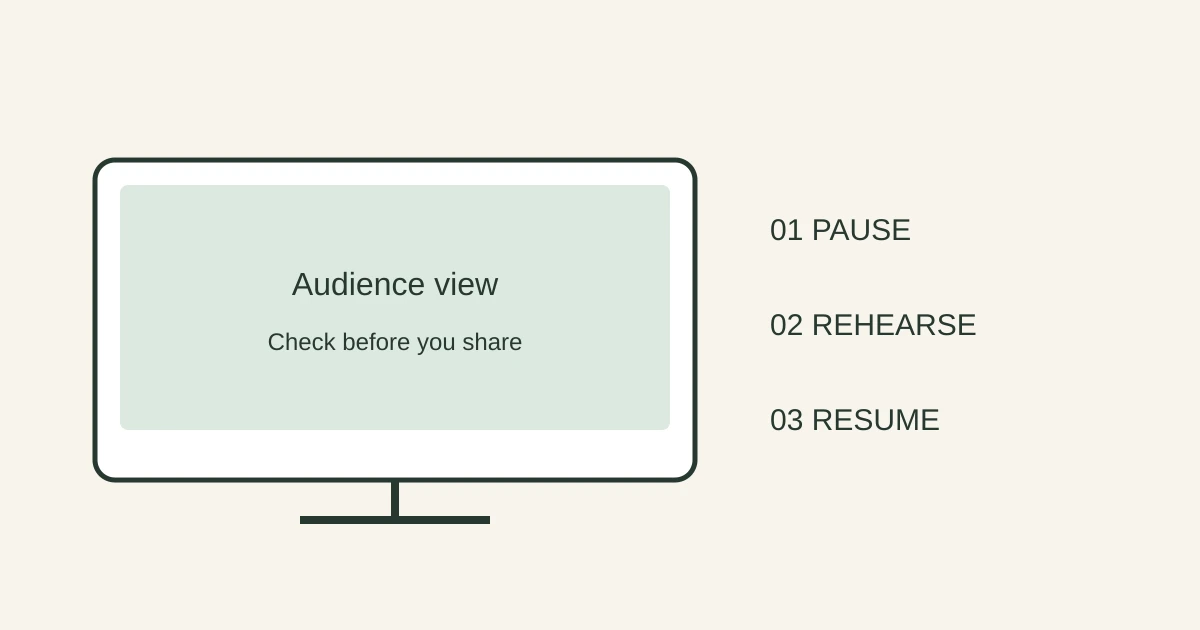
Separate a notification from an app window
Start by identifying what interrupts you. Is it a small macOS notification banner, a floating timer, a menu-bar panel, or a full-screen break? They are not interchangeable. A setting that silences system notifications is not evidence that every window created by a reminder app will stay hidden.
Apple's Notifications guide describes controls for notifications while mirroring or sharing a display. Review the setting on your installed macOS version; names and layouts can differ. Then inspect the reminder's own pause and presentation controls separately.
Write down the actual interruption you need to prevent. “No reminder overlay during the customer demo” is a better test than “Do Not Disturb is on.” The first describes an observable outcome; the second only describes one setting.
Decide what you need to share
Before opening the meeting, decide whether the audience needs a browser tab, an application window, or an entire display. Choose the narrowest option that supports the task in your meeting software. Sharing a specific window can reduce unrelated material in view, but do not assume it hides every overlay in every combination of operating system and meeting app.
Prepare a harmless demo document and close unrelated windows. If you must switch applications, rehearse the transition rather than improvising with a desktop full of private material. Put speaking notes somewhere you have confirmed is outside the shared area.
A second monitor is not a privacy guarantee either. Check which display is selected, where the reminder opens, and what happens when you enter full-screen presentation mode. Our multiple-monitor reminder guide covers the broader display workflow.
Run a harmless rehearsal from the audience side
Use a private test session before an important presentation. Have a trusted colleague view it, or use an approved second device with its microphone and speakers muted to avoid feedback. Do not invite real clients just to test a reminder. Follow your workplace's meeting and recording rules.
- Open a neutral page with no account or customer information.
- Share the same kind of target you will use in the real session.
- Use the reminder's documented preview or a short temporary interval, if available.
- Check the audience view for banners, panels, sound and full-screen interruption.
- Stop sharing, restore your normal interval, and confirm the timer can resume.
Test the actual combination you use. A successful browser-tab share does not prove that a whole-display share, local recording or external presentation display behaves the same way. If you cannot inspect the audience view, treat the result as unverified rather than guessing.
Use a deliberate pause when reliability matters
For a high-stakes demo, a manual pause is a reasonable fallback. Find the control before the call, apply it, and confirm the visible timer state. If the app has no clear pause, consider quitting it through its normal menu for the session, then reopening it afterward. Do not change system security settings merely to suppress a break.
Apple documents turning Focus on and off from Control Centre. Focus can help with notifications, but use it alongside the app-specific check rather than as a substitute for it. Review allowed notifications and other devices if they matter to your meeting.
Some products document automatic pauses. For example, Intermission's FAQ describes Auto Pause for calls, screen sharing and full-screen apps. That is a vendor-described capability, not a guarantee for your configuration or a feature shared by all reminders. Test it before relying on it.
Make resuming part of the meeting checklist
A reminder that stays paused for the rest of the day has solved one problem by creating another. Put “resume break timer” beside “stop sharing” in your closing checklist. If you use a temporary calendar note, make it private and keep confidential meeting details out of the reminder text.
After the call, first stop the share and confirm that it ended. Then resume the timer, check its next expected break, and take a comfortable pause when the schedule allows. Avoid immediately forcing a long exercise session into a one-minute gap before the next meeting.
For back-to-back calls, address the schedule too. Our guide to protecting breaks between meetings explains buffers and practical requests. No reminder can create an agreed break in a meeting that continues without a pause.
What to expect from Moov
Moov supports manual pause/resume. Do not assume it automatically detects your calendar, active meeting or screen-sharing session. If automatic meeting detection is essential to you, treat that as a separate selection requirement rather than hoping a manual workflow will behave automatically.
Before choosing any reminder, keep a small acceptance checklist: no unwanted content in the audience view, an obvious paused state, a reliable return to reminders, and a break format that suits your workspace. Repeat the harmless rehearsal after a significant app or macOS update. This is a practical verification habit, not a claim that a particular app is unsafe.
Make room for a movement break
Moov offers configurable break intervals, manual pause/resume and six guided standing movements on Apple Silicon Macs running macOS 11.0 or later. First-run practice requires a camera-checked repetition. It is a movement reminder, not an ergonomic assessment or a treatment for symptoms.
Two free guest breaks, then sign in and verify your email for a seven-day trial. No card required. A paid plan is needed afterward. Read the setup and camera details before trying it.