Choose the schedule you want to follow
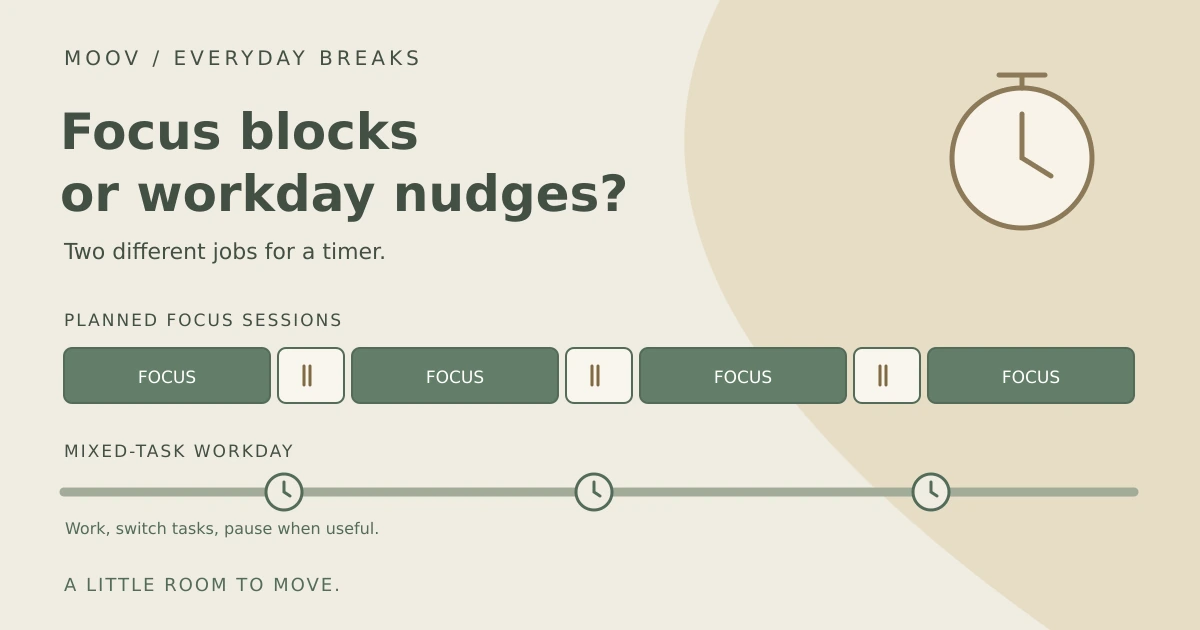
Think about the next hour before comparing app features. Are you setting aside a block for one task, or moving between messages, documents and calls while trying to remember to pause? The first situation may suit an alternating focus timer. The second may suit a reminder that continues across tasks.
The official Pomodoro Technique includes planning, working on one activity, handling interruptions and reflecting on effort. A timer supports that method, but a countdown alone does not supply the whole process. You can also use an interval timer more casually without adopting every part of the method.
A break reminder can serve a simpler purpose: prompt a pause while you work in your usual way. Its name does not tell you whether it starts automatically, counts idle time or understands meetings. Those are separate product behaviors to check.
Write one sentence describing the job: “Help me begin and finish a writing session” or “Remind me to leave the desk while I move between tasks.” Start with the tool that answers that sentence. This guide is published by Moov and is based on documentation reviewed on November 11, 2026, not a hands-on ranking or a promise of better productivity.
Compare starts, transitions and resets
Two apps can display the same number of minutes and still create different routines. For example, Flow describes alternating work and short breaks. Moov describes configurable movement reminders and guided standing breaks. Compare the sequence you need rather than assuming every timer follows the same cycle.
- Starting: do you deliberately start a session, or does the reminder begin once the app is running?
- Transitioning: after work ends, does a break begin automatically, wait for you, or only produce an alert?
- Returning: does the next work interval start by itself, or do you confirm that you are back?
- Resetting: after a natural pause, sleep or a call, does the app keep the old countdown or begin a new interval?
Check the chosen app's documentation and settings for each answer. A task list, app blocker, idle detector and recurring break schedule are different features. Having one does not establish that the others are included.
If your only need is a countdown for one task, our Mac break-reminder setup guide covers simpler starting options. You do not need a more elaborate system just to try a timed session.
Spot the problem with two independent countdowns
Consider this hypothetical example. You start a 25-minute focus session at 9:00 and also start a separate reminder set to appear after 30 minutes. Neither app adjusts its countdown when the other starts a break.
- At 9:25, the focus timer ends and you take a five-minute pause.
- At 9:30, you return and begin the next focus session.
- At the same moment, the separate reminder asks you to stop again.
Both timers followed their instructions. The conflict comes from giving them separate schedules without deciding how one should affect the other. An idle-aware app might behave differently, so this example is not a claim about a particular product.
Matching the two intervals does not necessarily solve the problem. Pausing one timer, extending a break or starting the apps at different times can separate their schedules again. Two apps also do not become synchronized merely because their default durations match.
Before adding a second tool, identify what the first one lacks. If it already prompts a pause at a useful time, you may only need to choose an activity for that pause. Our Pomodoro break activity guide addresses that question without adding another countdown.
Give one timer control during each work period
If you want both types of tool, use them in clearly separated periods. The following is a manual workflow you can adapt, not an advertised integration between apps:
- Before a focused session: pause the separate recurring reminder using its documented controls. Start the focus timer and let it handle that session's work and break transitions.
- When the focused session ends: stop or pause the focus timer. Deliberately resume the reminder you want for general desk work.
- Before a call or presentation: check whichever timer is active. Pause it if necessary rather than assuming it recognizes the situation.
- After the interruption: choose the next work period and confirm its timer is active.
A morning of focused writing followed by an afternoon of mixed tasks is one possible split. You can also keep just one tool throughout the day if switching introduces more work than it saves.
Do not depend on automatic coordination unless both the feature and your configuration support it. This guide does not claim a built-in Pomodoro integration for Moov. For Moov, closing its window keeps reminders running, while Quit stops them, according to its terms. Use its pause controls intentionally rather than treating a closed window as a pause.
Check the result during an ordinary work session
Try the simpler arrangement first. After a representative work period, answer four questions:
- Start: did I remember to start the tool when I needed it?
- Pause: did its cue lead to the break I intended, or did I repeatedly dismiss it?
- Return: was it clear when I was ready to start work again?
- Exception: after a call or an unexpected interruption, did I know which timer was still active?
These observations help you decide what to change. If you keep forgetting to start a focus session, check a reminder's startup behavior. If your timer appears at useful moments but you keep working through it, consider whether you want a more noticeable break format or guidance for the pause. If restarting is confusing, simplify the number of controls.
Change one thing before the next session. Otherwise you cannot tell whether a different interval, a different alert or a different break activity helped. The point is to find a routine you can use, not to give yourself a compliance score.
The example intervals in this guide are scheduling examples, not medical recommendations or a universal limit on computer use. Do not delay food, the bathroom or needed rest to satisfy a timer.
Choose Moov when the movement break is the part you want
Moov is a candidate when you want configurable reminders followed by one of six guided standing movements. It runs on Apple Silicon Macs with macOS 11.0 or later. Choose it for that break experience, rather than assuming it will manage a task list or coordinate another app's focus cycle.
Check the setup requirement first. Moov's current first-run practice requires a camera-checked repetition. Its timed fallback for regular breaks does not provide camera-free onboarding. The setup and camera guide explains that distinction. Camera processing happens locally, but the app also uses connected services, as described in the privacy policy.
For a focused work-and-break cycle, choose a timer whose transitions fit your routine. For a guided movement pause during general desk work, consider Moov if its hardware, camera and access requirements fit. If an existing timer already supplies the breaks you want, keep it.
Leave enough clear space for any movement you choose, and stop if it causes pain or discomfort. A completed timer or camera check cannot establish that a movement is appropriate for you.
Try a movement break on your Mac
Moov offers configurable break intervals and six guided standing movements. Try one in the space beside your desk, and pause manually when an interruption would not suit you.
First-run practice requires a camera-checked repetition. Read the setup and camera details before trying it.
Apple Silicon · macOS 11.0+ · Two free guest breaks, then sign in and verify your email for a seven-day trial. No card required. A paid plan is needed afterward.