Give the reminder one job
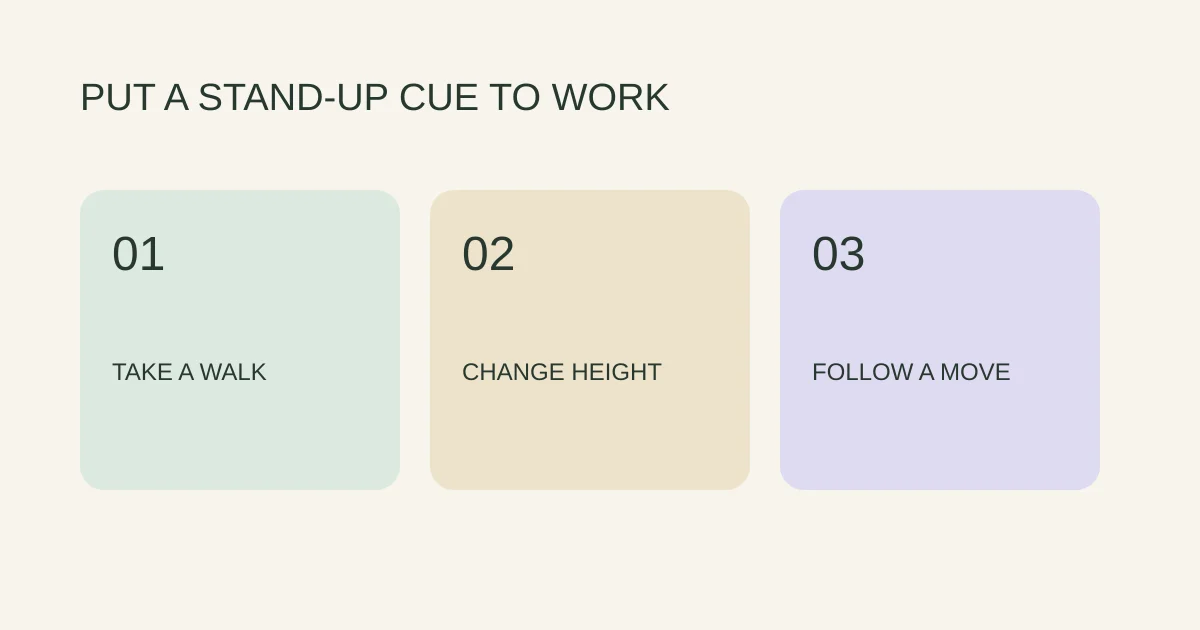
“Take a break” sounds clear until you are midway through a spreadsheet and have to decide what counts. Make the cue specific: “walk to the kitchen,” “change desk height,” or “follow one standing movement.” Try one of those, not all three. If standing is not practical for you, choose a seated change you can do comfortably or an activity away from the screen that works for you.
A standing desk reminder can nudge you to work at another height. A movement reminder asks you to stop the work for a moment. Those are different goals, even if both start with getting out of your chair. The Canadian Centre for Occupational Health and Safety recommends varying working position rather than staying in one position for long periods.
Use Mac Clock for one break
If your version of macOS has Clock, open it and choose Timers. Name the timer for the action, choose a sound you can recognize, and start it for the next work block. Apple’s Clock guide shows how to restart from the alert with Options → Repeat. That takes a click; a countdown won’t automatically restart every time you finish a break.
Try a short test while doing something ordinary, like editing a note. When it goes off, take the planned action before touching Repeat. If the break happened but the next timer never started, the problem is not the sound: you need a repeating cue. If you always break at the same time, a named Clock alarm that repeats on workdays may be enough. It still goes by wall time, not by how long you have been at your desk.
Choose what the next reminder should depend on
- A predictable point in the day
- Use a clock-time cue if you know when you can leave the desk. Pick one useful gap rather than adding alarms to every hour.
- Time spent at the computer
- Use an active-time tool if a fixed alarm keeps firing soon after you return. For example, StandUp’s developer describes counting work time, pausing when you step away, and holding due breaks during supported calls. Activity at the Mac is still not a measurement of whether you are actually sitting.
- Alternating desk heights
- Look for separate sit and stand timers if your goal is to work in both positions. Standro documents posture switching from the menu bar. Check the controls with your own desk setup.
- A movement to follow
- Use a guide when you notice cues but stall deciding what to do. Moov offers demonstrated standing movements and configurable intervals, with manual pause and resume.
Test a day with both quiet and busy hours
- Start during a real work block. Use an easy action you can do without moving furniture or changing clothes.
- Try one meeting and one time away. Decide whether the reminder should wait, be paused manually, or be dismissed. Check that it picks up afterward. Moov does not need to be your choice if automatic call handling is essential.
- Mark what happened on paper. “Moved,” “missed it” or “noticed and postponed” is enough. If you miss it, adjust delivery. If you postpone repeatedly, change the timing. If you notice it and still do not move, simplify the action.
Compare how often you acted, not how many notifications you collected. If the main obstacle is back-to-back calls, use the meeting buffer guide before adding more reminders.
Keep the setup that fits your week
A reminder should fit work as it is, not a day with no interruptions. Keep the lightest setup that gets you moving: a single named timer, a recurring cue with an obvious pause, or a demonstration you can follow. If you want to walk instead of stretch, see our walking-break guide. If your issue is that a cue never arrives, troubleshoot missing reminders before increasing their frequency.
For a practical next step, read our guide to testing a menu bar break timer.
Make room for a movement break
Moov offers configurable break intervals, manual pause/resume and six guided standing movements on Apple Silicon Macs running macOS 11.0 or later. First-run practice requires a camera-checked repetition. It is a movement reminder, not an ergonomic assessment or a treatment for symptoms.
Two free guest breaks, then sign in and verify your email for a seven-day trial. No card required. A paid plan is needed afterward. Read the setup and camera details before trying it.