Decide what “offline” needs to cover
Start with your actual situation. Do you need reminders during a short connection drop, a full travel day, or several days without internet? Are you using an app you already set up, or expecting to install and activate it after leaving? Those requirements are not interchangeable.
Write down the minimum behavior you need: a visible reminder, a sound, a specific exercise or a screen-free pause. Then separate optional features such as cloud sync and downloadable media. A plain timer may be enough for one person; someone who depends on a guided routine needs to check that the guidance itself remains available.
Offline operation is also different from privacy. An app can process information locally while still needing an account service, an update check or a resource download. Our privacy checklist covers the data question; this guide covers whether your chosen workflow remains usable without a connection.
Read the offline claim precisely
Look for an explicit answer in the developer's documentation, not just the words “native” or “on-device.” Standro's FAQ, for example, states that it does not require an internet connection or account. Viraam's Mac overview also describes offline operation without an account. These are developer-described capabilities, not independent tests performed for this article.
Do not treat an offline claim as proof that obtaining the app, restoring a purchase or downloading every optional resource can happen without internet. Check those steps separately. A purchase model does not answer the question either: a subscription may have an offline allowance, while a one-time purchase may still require activation.
If the documentation is ambiguous, ask a precise question before depending on it: “After setup and a restart, can the reminder and this specific break activity run for my entire planned offline period?” Avoid requesting a guarantee about all features when you only need two.
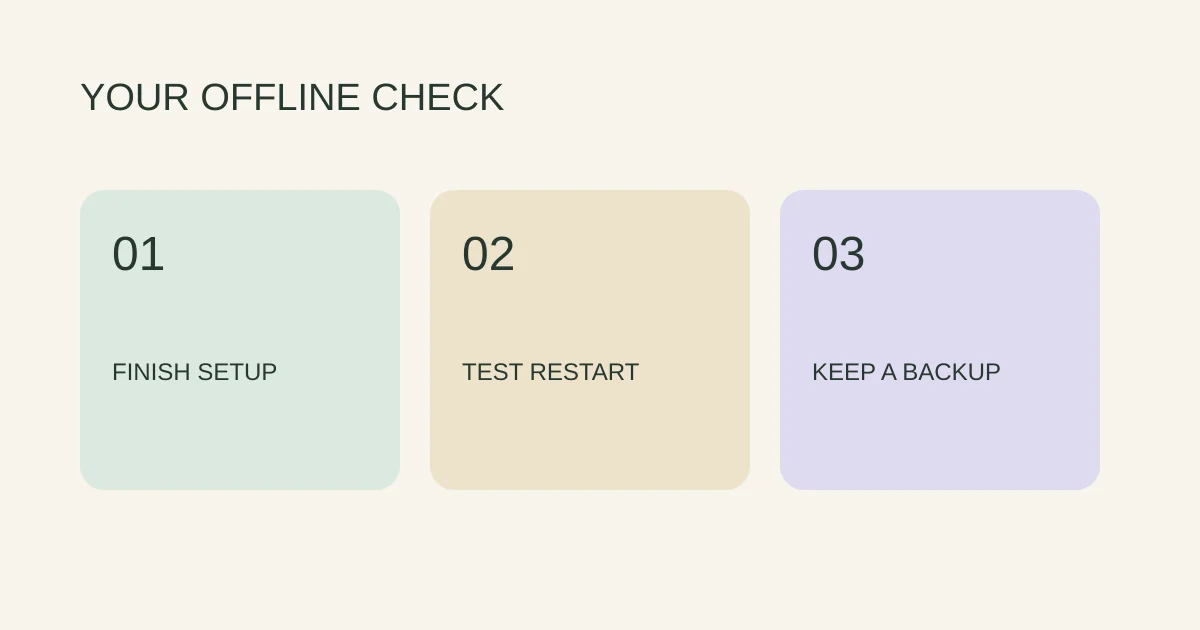
Finish setup while you have a reliable connection
Install through the developer's approved route and finish the ordinary first-run flow before travelling. If the app requires account verification, purchase restoration, activation or a resource download, complete the relevant steps while they are available. Follow workplace device rules rather than installing unapproved utilities on a managed Mac.
Open the particular break activity you intend to use. Seeing the main timer is not the same as confirming that an animation, audio guide or movement model has loaded. Record any message that says a download or verification is still pending, and resolve that through the normal product flow.
Keep your acceptance checklist small: app opens, reminder appears, intended activity works, and the next reminder can be scheduled. You do not need to inspect network traffic or change firewall, VPN or certificate settings to perform this ordinary usability check.
Test an ordinary offline session and restart
At a convenient time, use a normal offline connection state on a Mac you control, without interrupting calls, uploads or other people's work. Do not change a managed device's network policy. Try a short temporary reminder interval, complete or dismiss the break normally, and verify that the timer continues as expected.
- Check the reminder you actually rely on, including sound if needed.
- Open the break activity, not only its title or thumbnail.
- Quit and reopen the app normally while still offline.
- Check behavior after the Mac sleeps and wakes.
- Restore your normal interval and connection when the test is finished.
A successful short test does not prove indefinite offline access. Expiring licences, a later sign-in requirement or content that was cached during setup may change the result. Record the app version and what you observed rather than calling the whole product permanently offline.
What this means for Moov
Moov should not be described as an entirely offline app. Its privacy policy distinguishes local camera processing from network downloads, account and licence services, and update requests. The fact that camera frames are processed on your Mac does not mean every dependency is already present there.
Moov's current implementation includes a time-limited licence for previously verified paid access; that is not an indefinite offline promise or a substitute for first-run setup. Trial access and the availability of camera-related resources must be considered separately. This article has not verified a complete native offline session on your Mac.
If reliable multi-day offline use is your deciding requirement, choose only after the exact workflow and duration have been confirmed. If you want configurable reminders and guided standing movements while using a normally connected Mac, Moov is a different fit to evaluate. Our Mac reminder chooser explains the other selection questions.
Keep a simple backup for the trip
Have a fallback cue that does not depend on the untested feature: a watch alarm, a clock or a paper note at an appropriate task boundary. Test that cue too. A backup reminder is useful only if you will notice it and can respond safely.
Travel also changes what a suitable break looks like. Do not stand or perform a guided movement where the vehicle, aisle or surrounding space makes that unsafe. Use an appropriate opportunity to change activity instead. Return to your ordinary settings when back at the desk, and use our restart checklist if finding your place afterward is the harder part.
Make room for a movement break
Moov offers configurable break intervals, manual pause/resume and six guided standing movements on Apple Silicon Macs running macOS 11.0 or later. First-run practice requires a camera-checked repetition. It is a movement reminder, not an ergonomic assessment or a treatment for symptoms.
Two free guest breaks, then sign in and verify your email for a seven-day trial. No card required. A paid plan is needed afterward. Read the setup and camera details before trying it.