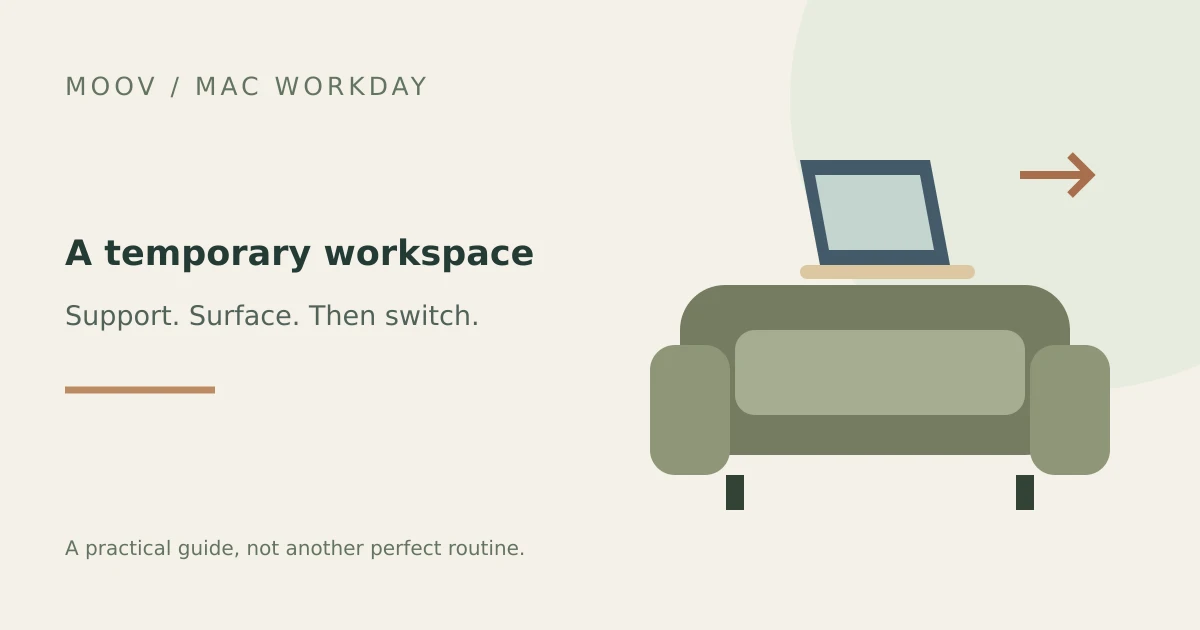
Choose the task before settling onto the couch
A sofa can feel inviting while still being awkward for a laptop. A deep seat puts the backrest far away; a low coffee table invites reaching; a laptop on your knees puts the screen below your natural sightline. The useful question is not whether you can find one perfect couch posture. It is whether this setup suits the task you are about to do.
For a brief document review, you may be able to improve the arrangement with what you already have. For sustained typing, spreadsheet editing or detailed design work, a supported chair and suitable work surface usually offer more adjustment. NIOSH recommends avoiding couches and soft chairs for work where possible, while giving practical support advice for people without another option.
If space is the constraint, make the next change small: clear one end of a table rather than planning an entire home office. If a health condition makes a conventional desk unsuitable, seek an individual assessment rather than forcing yourself into an uncomfortable position.
Give the MacBook a stable, ventilated surface
Use a firm surface that safely supports the computer. Do not balance it on a narrow sofa arm or leave its cable across the route you will use to stand up. Keep drinks away from the keyboard and from the edge of a tray you need to move.
A lap desk can make the surface more stable, but it does not automatically solve screen height, arm reach or back support. Check the arrangement with the actual task open: can you type without lifting your shoulders, and read without continually leaning forward?
Apple's MacBook safety guidance calls for adequate ventilation around the computer and power adapter. Do not put a powered device or adapter under a pillow, blanket or your body. If the laptop becomes uncomfortably warm on your lap, move it to a stable, well-ventilated work surface. A cushion behind your back is different from burying the computer or charger in soft furnishings.
Check support and reach, not just the screen
Sit far enough back to use the available back support. A cushion or rolled towel may help bridge the gap in a deep seat, but do not build an unstable stack to achieve a particular height. Support your feet where practical and keep the keyboard and pointing device close enough that you do not brace yourself forward to use them.
Check three things after opening a real document:
- Back: can you use the support without sliding away from it whenever you type?
- Arms: can your shoulders relax while your hands reach the keys and mouse or trackpad?
- View: can you read comfortably without craning toward the display? Try larger text before moving closer.
Penn's home-office guidance distinguishes temporary laptop arrangements from regular use. Its short-term advice includes back support, a suitable hard surface, neutral wrists and frequent opportunities to move. These are useful checks, not a requirement to hold yourself rigidly in one pose.
A raised laptop still has a keyboard attached
Putting the MacBook higher may help you see the screen, but the keyboard rises with it. If that makes your shoulders lift or wrists bend awkwardly, the adjustment has traded one problem for another. A high tray is not necessarily an improvement for typing.
For longer work, separate the viewing and typing positions with an external keyboard and mouse or trackpad, on a stable surface within reach. If the sofa arrangement cannot accommodate that safely, move to a table. Our MacBook workstation guide explains how to arrange those separate parts. You do not need to buy every accessory at once; first identify which constraint is actually stopping you from working comfortably.
Reading and typing also have different demands. A setup that works for reviewing a short document might be a poor place to write the whole report. Choose the task to match the temporary setup rather than extending a brief couch session indefinitely.
Plan the transition before the session starts
Decide what will end the couch session: finishing a review, the start of a meeting, or a reminder you choose. Put the next work location in order first. A cleared table is easier to move to than a surface covered in yesterday's paperwork.
- Choose one bounded task, not “work here until lunch.”
- Set a checkpoint that fits the task and your own needs. There is no universal safe couch-work duration.
- At the checkpoint, put the laptop down securely before moving.
- Change activity or position as you are able, then reassess whether the next task belongs at a better-supported surface.
NIOSH recommends periodic breaks and posture changes. A reminder can help you remember that decision; it cannot make an unsuitable arrangement suitable. For ideas that do not depend on buying a standing desk, see staying active while working from home.
Use a movement prompt, not a posture promise
Moov's role is reminding you to make room for movement during Mac work. It does not assess your sofa, identify a safe posture or treat pain. If you choose guided standing movements, put the laptop on a stable surface and make sure you have enough room to move safely. Choose another break activity if standing movements are not appropriate for you.
Recurring discomfort, numbness or pain should prompt appropriate professional advice, not repeated attempts to fix everything with cushions or an app. For the habit itself, start with the work-break reminder plan.
Try a movement break on your Mac
Moov offers configurable break intervals and six guided standing movements for Apple Silicon Macs running macOS 11.0 or later. First-run practice requires a camera-checked repetition; the timed fallback applies to regular breaks. Read the setup and camera details before trying it.
Download for Mac