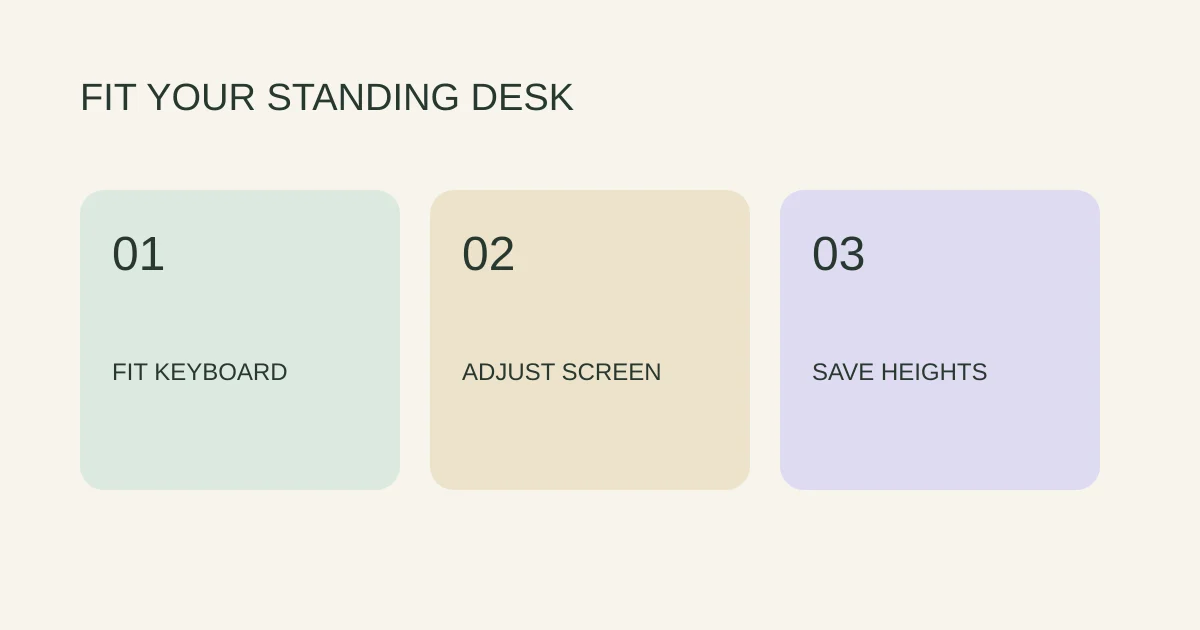
Measure where your hands actually land
- Wear the shoes you normally work in, and stand on your mat if you use one.
- With your upper arms next to your body, bend your elbows to about a right angle without shrugging.
- Adjust your desk until the top of the keys sits near elbow height. Bring the mouse to the same working level and within easy reach.
If you’re shopping, have someone measure vertically from the room floor to your relaxed elbow while you stand as you normally would. Subtract the distance from the desktop to your keycaps. Compare that starting height with the seller’s finished surface range, and check that the desk also reaches your seated height. The Canadian Centre for Occupational Health and Safety recommends a platform around standing elbow height and relaxed shoulders.
Set the screen separately
After setting the keys, look at the screen with your head facing forward. Start with the top of the main display at or just below eye level and adjust it so you can read comfortably. If you use a MacBook by itself, lifting the screen also raises the keyboard. A separate keyboard and mouse let you set the two heights independently during longer work blocks.
With a riser, measure the shelf that holds your keyboard, not the monitor platform. Compare a converter and a full standing desk if the shelf can’t reach both of your positions. For screen details, see monitor height and distance.
Try two minutes of real typing
- Your shoulders creep up
- Lower the work surface slightly. Check that you aren’t reaching higher or farther to use the mouse than to type.
- You lean forward or reach down
- Move the keyboard closer first. If you still reach down with your arms close to your sides, bring the surface up a little.
- Your wrists bend back
- Compare a flatter keyboard angle and a slightly lower surface. Aim to keep your hands and forearms roughly in line, not held rigid.
- You crane your neck
- Change text size, screen distance or screen height rather than starting over with the whole desk.
Change one thing at a time. Test keyboard and mouse tasks, not just sitting still with your hands on the desk.
Save a sitting and standing preset
Fit your seated position from the chair up: support your feet, give your legs clearance and set the keyboard so your shoulders stay relaxed. Check the CCOHS seated setup guide. Write down both heights or save them to the desk controls if available. Watch the cables when you move through the full range.
Change positions as needed instead of trying to hold one all day. Moving away from the screen is still different from changing the desk height and continuing to work. See how to use both sitting and standing, or set a stand-up cue on your Mac if you forget to move.
Make room for a movement break
Moov offers configurable break intervals, manual pause/resume and six guided standing movements on Apple Silicon Macs running macOS 11.0 or later. First-run practice requires a camera-checked repetition. It is a movement reminder, not an ergonomic assessment or a treatment for symptoms.
Two free guest breaks, then sign in and verify your email for a seven-day trial. No card required. A paid plan is needed afterward. Read the setup and camera details before trying it.